Get directions by car, on foot or by bike
On this page
Directions finds the way from one place to another by car, on foot or by bike. It shows up to three routes to choose from, with the time and distance of each, the steps to follow, and for walks and rides, how much you will climb.
#Get a route
-
Select Directions in the ribbon, the directions button at the right end of the search box, or Directions on any place page (which fills in the destination for you).
-
Choose how you travel: Drive, Walk or Bike.
-
Fill in the starting point (A) and the destination (B). As you type, suggestions appear; select one, or press Enter to take the best match. When a box is empty, its suggestions offer Your location and the places you have saved.
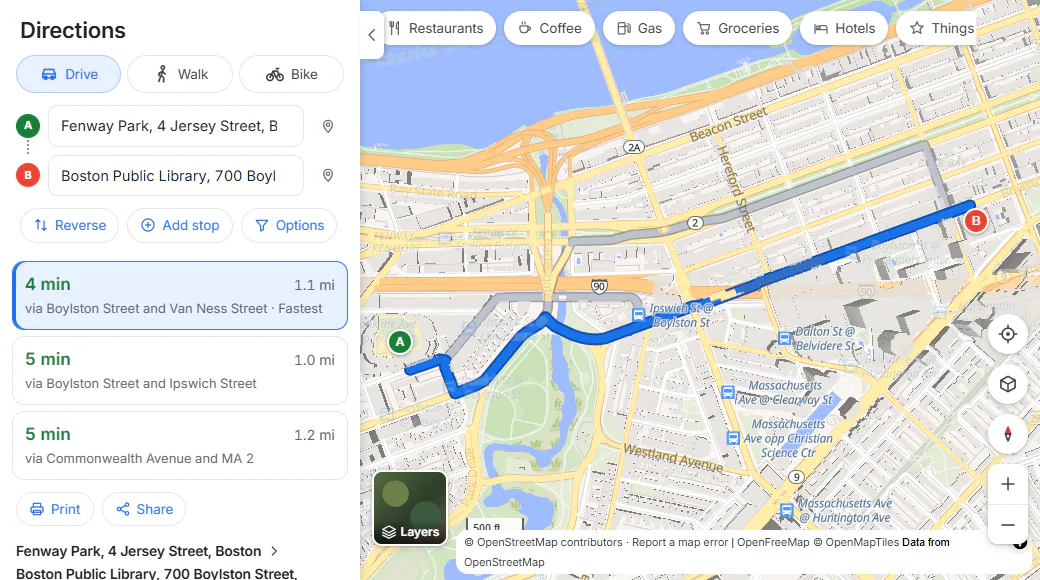
Directions from Fenway Park to the Boston Public Library. The fastest route is drawn in blue, the others in grey.
- 1How you travel: Drive, Walk or Bike
- 2The start (A) and the destination (B)
- 3Reverse, Add stop and Options
- 4Route choices: time, distance and the roads used
- 5The chosen route in blue; other choices in grey
-
The route appears as soon as both ends are set. Select another choice in the list, or select a grey line on the map, to switch routes.
Each choice shows its time, its distance and the roads it mostly follows ("via Boylston Street and Van Ness Street"), and notes Tolls or Ferry when it uses them. The first is marked Fastest.
Other ways to set a stop:
- Select the pin button at the end of a box, then click the map where you want that stop.
- Right-click the map (or press and hold) and choose Directions from here or Directions to here.
- Drag a lettered marker on the map to move that stop; the route follows.
- Select Start from your location before you fill anything in. Your browser asks whether to share your location.
Reverse swaps the start and the destination.
#Turn-by-turn steps, printing and sharing
Under the route choices is the list of steps, each with the distance to the next one. Select a step to zoom the map to where it happens.
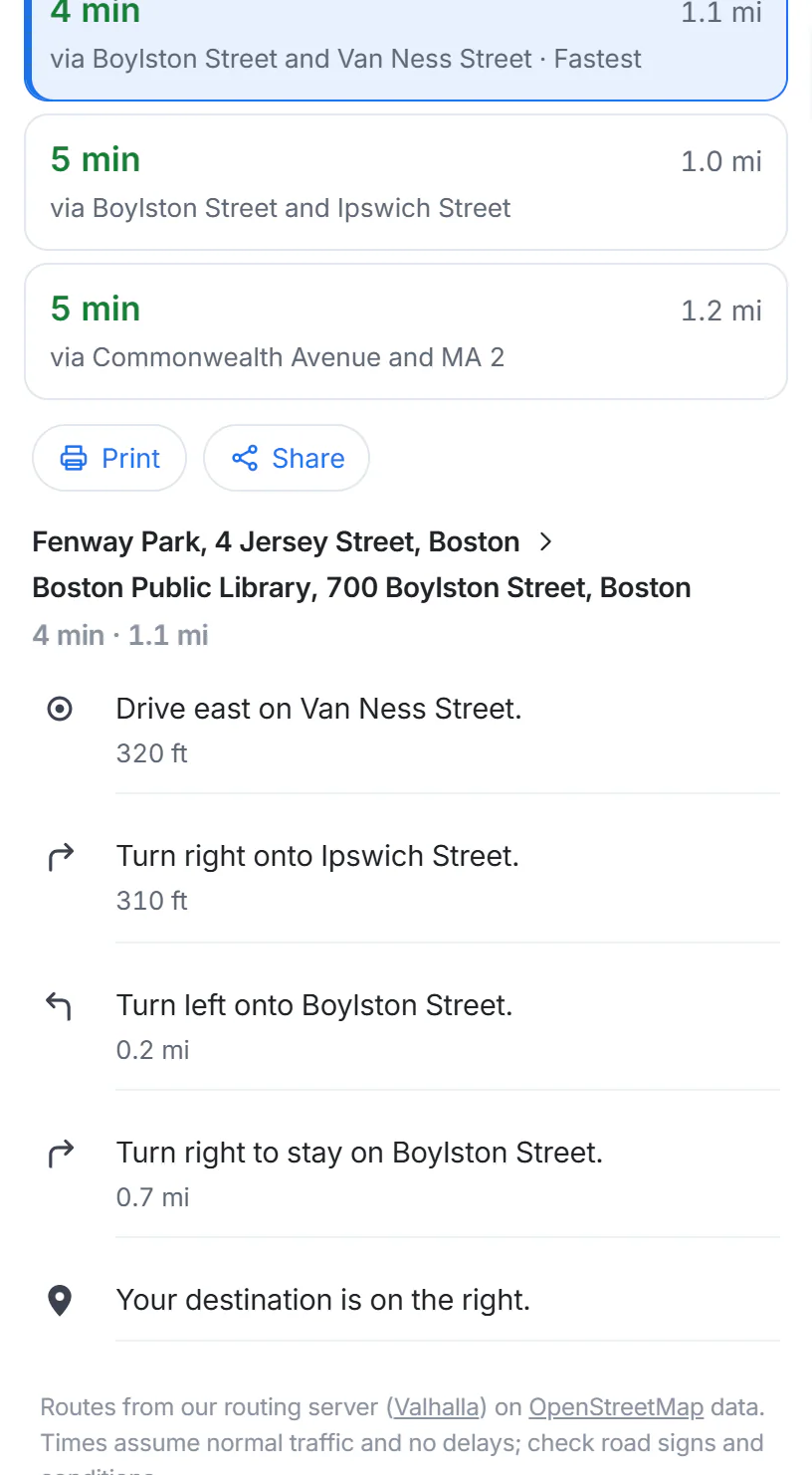
The steps of the route. Select a step to see that turn on the map.
- 1Print the directions or copy a link to them
- 2The trip: from, to, time and distance
- 3A step: select it to see where it happens on the map
- Print prints the steps with a picture of the map.
- Share copies a link to these directions, with every stop and your options, so someone else opens the same route.
#Walking and cycling
Walking and cycling routes use footpaths, trails, crossings and bike paths, not only streets. Cycling routes prefer bike paths and quieter roads and avoid steep hills where they can.
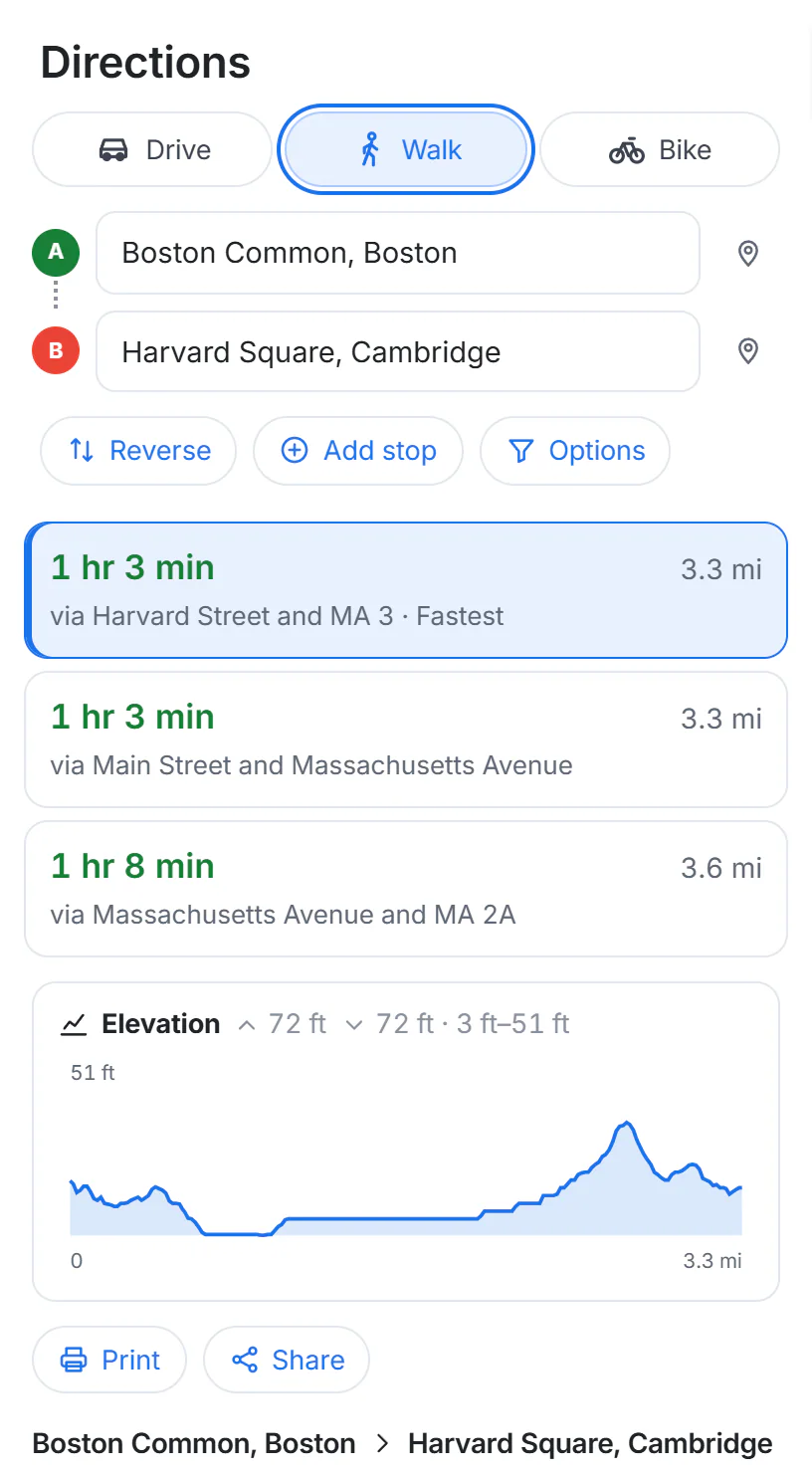
A walk from Boston Common to Harvard Square, with its elevation chart.
- 1Walk is selected; the route changes at once
- 2Time and distance on foot
- 3Elevation: total climb and descent, and the lowest and highest points
For walks and rides, an Elevation chart appears under the routes: the total climb and descent, the lowest and highest points, and the shape of the hills along the way. For drives, select Elevation profile to see it.
#Several stops
Select Add stop to add a stop before the destination. A trip can have up to ten places in all, lettered A, B, C and on. Once a trip has more than two places, each box has a × to remove that stop.
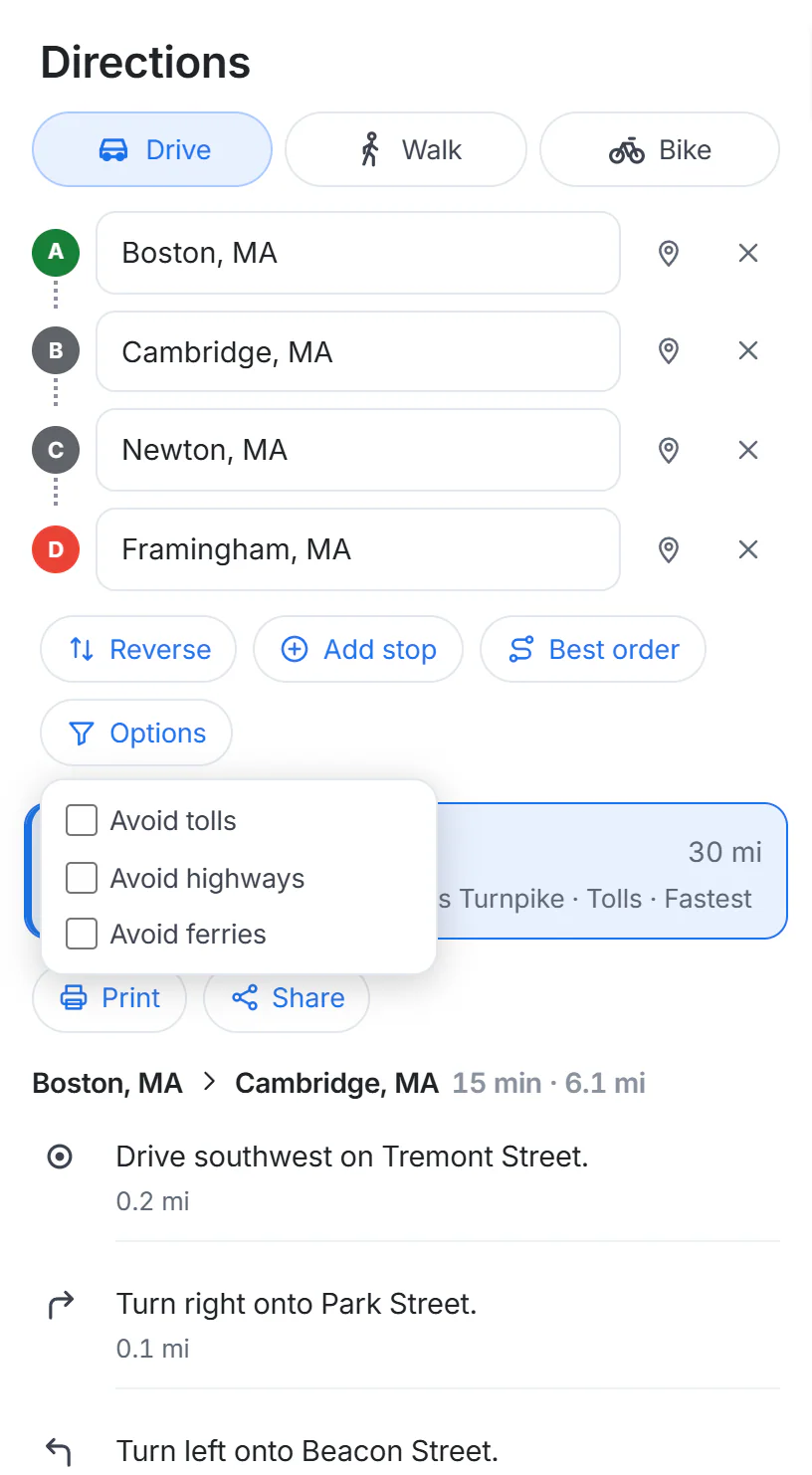
Four stops. Best order appears once there are four or more; Options holds the things to avoid.
- 1Each stop has a letter; drag its marker on the map to move it
- 2Add stop (up to ten in all)
- 3Best order: reorders the stops for the shortest trip
- 4Options: avoid tolls, highways or ferries
With four or more places, Best order keeps your start and your destination and reorders the stops in between for the shortest trip. When you have two stops, Maps also offers alternative routes; with more, it shows the one best route through them.
#Avoid tolls, highways or ferries
Select Options and tick Avoid tolls, Avoid highways or Avoid ferries. The route is worked out again at once. Maps avoids them where it can; if there is no other way, the route may still use them.
#Miles or kilometers
Distances follow your choice of units. Open Layers and select mi or km under Distances in. See The Layers menu.
#When there is no route
Instead of a route you may see one of these messages:
| Message | What to try |
|---|---|
| No route could be found between these places by this way of travel. | Try another way of travel, or move a stop onto a road. |
| These places are too far apart for this way of travel. | Long walks and rides have a limit; drive, or split the trip with stops. |
| Some stops could not be placed on a road or path. | Move the stop (drag its marker) closer to a road. |
| One of the places could not be found on the map. | Check the spelling, or pick a suggestion instead of pressing Enter. |
| The directions service is not answering right now. | Wait a minute and try again. |
| Directions are not available on this server yet. | Directions are not offered on this site at the moment. |
#Common questions
Does Maps have public transit directions?
No. Directions are for driving, walking and cycling. The Transit map shows subway, rail and tram lines and their stations, which helps you plan a trip by transit yourself.
Can I get directions for a truck, a bus or a wheelchair?
No. There are three ways to travel: drive, walk and bike.
How many stops can I add?
Up to ten places in all, the start and the destination included.
Can I send the directions to my phone?
Select Share to copy a link to the directions and send it to yourself however you like. On your phone, the link opens the same route.