Compare stocks side by side
The Compare page lines up to six symbols so you can see how they differ. One chart shows how much each has moved over the period you choose, and a table below puts their key numbers in columns.
#Open it
There are four ways in:
- Select Compare at the top of any stock's page. That stock is already on the list.
- Select Compare or Compare in full on a stock's peers and related-companies cards, or on search results. The first few companies are filled in.
- Select Compare in the Finance section bar.
- Go straight to the Compare page. Without a list of your own it starts with Apple, Microsoft and Nvidia.
#Choose what to compare
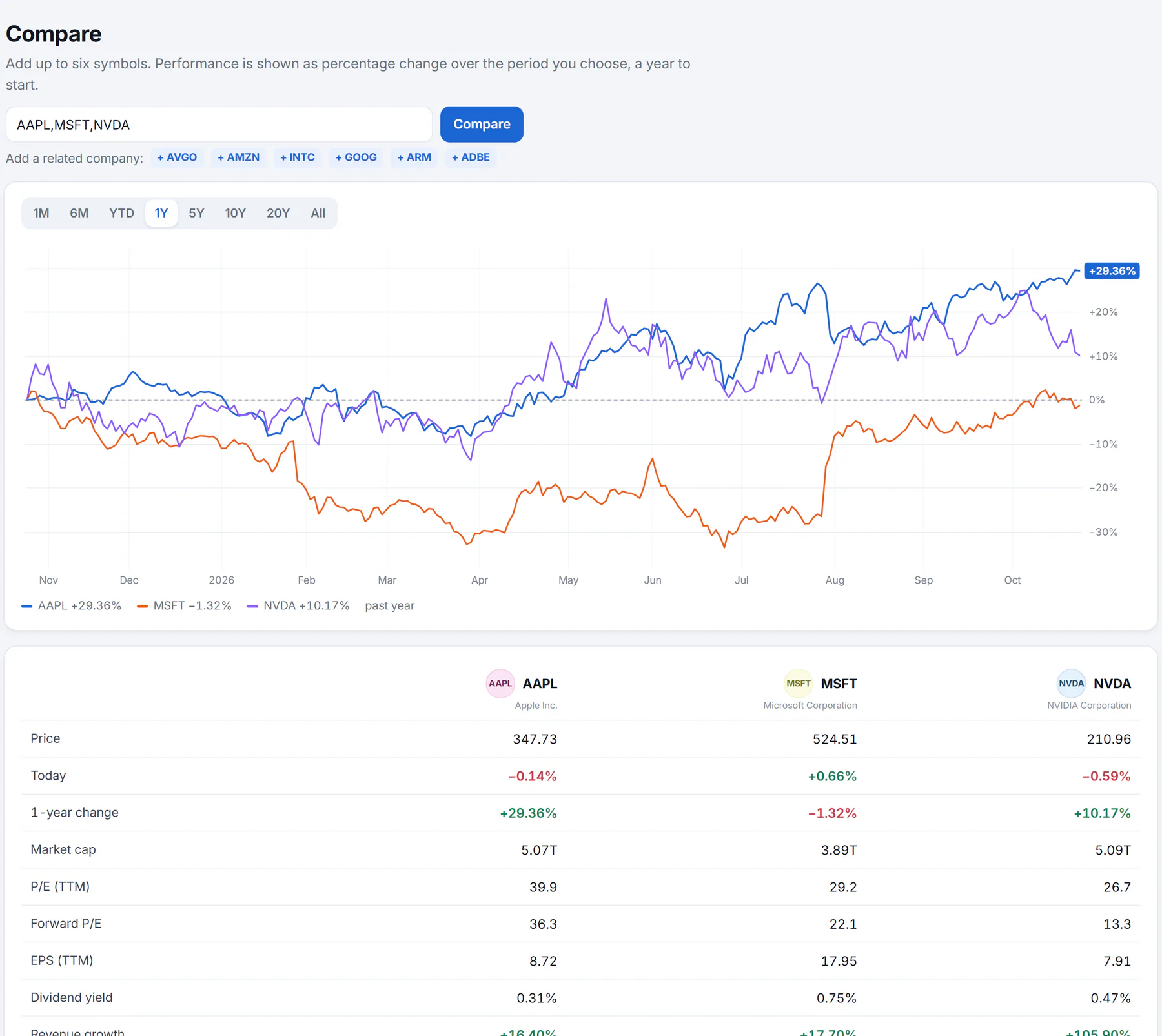
The Compare page. The chart shows percentage change; the table gives the numbers.
- 1Up to six symbols, separated by commas
- 2One-click additions
- 3Change over the period you choose
- 4The numbers side by side
- Type tickers in the box, separated by commas, such as
AAPL,MSFT,NVDA, and select Compare. Up to six are used. - Or select one of the + buttons beside Add a related company. Each adds a company close to the first one on your list.
- Choose a period with the buttons above the chart: 1M, 6M, YTD, 1Y, 5Y, 10Y, 20Y or All. It starts on 1Y.
You can compare stocks, funds, indexes, currencies and coins together. The box takes tickers, not company names; to find a ticker, use Search Finance.
#Read the chart
Every line begins at 0% at the left edge, so a line that ends at +30% rose 30% over the period, whatever its price. Hover over the chart to read each symbol's change at any point. The key under the chart lists each symbol's change over the period.
#Read the table
Each column is a symbol; select its name to open its page. The rows are:
| Row | What it tells you |
|---|---|
| Price, Today, 1-year change | What it costs and how it has moved |
| Market cap | How big the company is |
| P/E (TTM), Forward P/E, EPS (TTM) | How the price compares with earnings, past and expected |
| Dividend yield | The income it pays, as a percent of the price |
| Revenue growth, Profit margin, Return on equity | How fast sales are growing and how profitable it is |
| Debt to equity | How much it borrows against what its owners put in |
| Beta | How much it swings compared with the whole market |
| Analyst target | The average analyst price target |
The terms are explained in Key statistics, explained. A dash means the figure is not available for that symbol, which is common for funds, indexes and coins.
The chart on a single stock's page can also hold up to five comparison lines; see Price charts.
#Common questions
Can I compare more than six?
No. The page uses the first six symbols in the box.
Why are some cells empty?
Some figures apply only to companies. A fund has no P/E, and a coin has no dividend.
Can I save a comparison?
Not in the page itself. Bookmark its address, which holds the symbols.